Printess beschikt over een breed palet aan fotofuncties. Functies om foto’s op creatieve wijze te plaatsen en te bewerken. In dit artikel een conversieverhogende en dus veel gebruikte functionaliteit: de ‘fotosplitter’.
When a template is created for a specific product group or product, it is not known whether the potential buyer of the product in question wants to post one photo or several photos. Here is a simple example. The item is a T-shirt with space for a photo on the front. It may well be that the visitor/customer does not want to post just one photo, but two, three, or more. This degree of flexibility increases the creative possibilities for the visitor and, more importantly, increases the chance of conversion.
Printess Splitter
Om het voor de bezoeker zo flexibel mogelijk te maken, beschikt Printess over de Splitter-functie. Zie onderstaande animatie.
If the splitter functionality is activated, visitors can split or cut a photo horizontally and/or vertically. This allows visitors to post two, three, four, or more photos instead of just one, as shown in the animation above. It is then possible to adjust the proportions between these photos. Each individual photo can be made smaller or larger, with the other photos automatically scaling accordingly. This ensures that the total size of the object remains the same.
In addition, it is possible to adjust the distance between the individual photos. This distance can be set in 5 steps: 0, Small, Medium, Large, and Extra Large. You can then decide whether a border should be visible around the photos.
De Printess Splitterfunctie biedt optimale flexibiliteit voor de potentiële klant. Als deze het ontwerp kan maken zoals gewenst, is de kans op conversie gemaximaliseerd.
Printess Designer Client
Elke template wordt gecreëerd en onderhouden vanuit de Printess Designer client. In de Designer Client kan een foto-object worden geplaatst. In de instellingen van het betreffende object kan de Splitter-functionaliteit worden geactiveerd. Zie onderstaande animatie.
There are several possibilities here:
- The photo object is placed as a single object with the Splitter functionality active. Basically, visitors can place one photo from the Buyer Side. If visitors want to place multiple photos, they can use the Splitter to determine in which direction the object should be 'cut' and divided, horizontally and/or vertically. This offers visitors optimal freedom in terms of number and layout.
- Thesecond option is that the photo object is already divided based on the Splitter functionality when designing the Template. As in the animation above, where the object is divided into four photo objects. The visitor can then adjust the proportions between the four 'sub-objects' from the Buyer Side.
Using the Splitter functionality, the object can be divided further, horizontally and/or vertically, if desired. The number of photos can also be reduced by enlarging the desired photo in its entirety, horizontally or vertically.
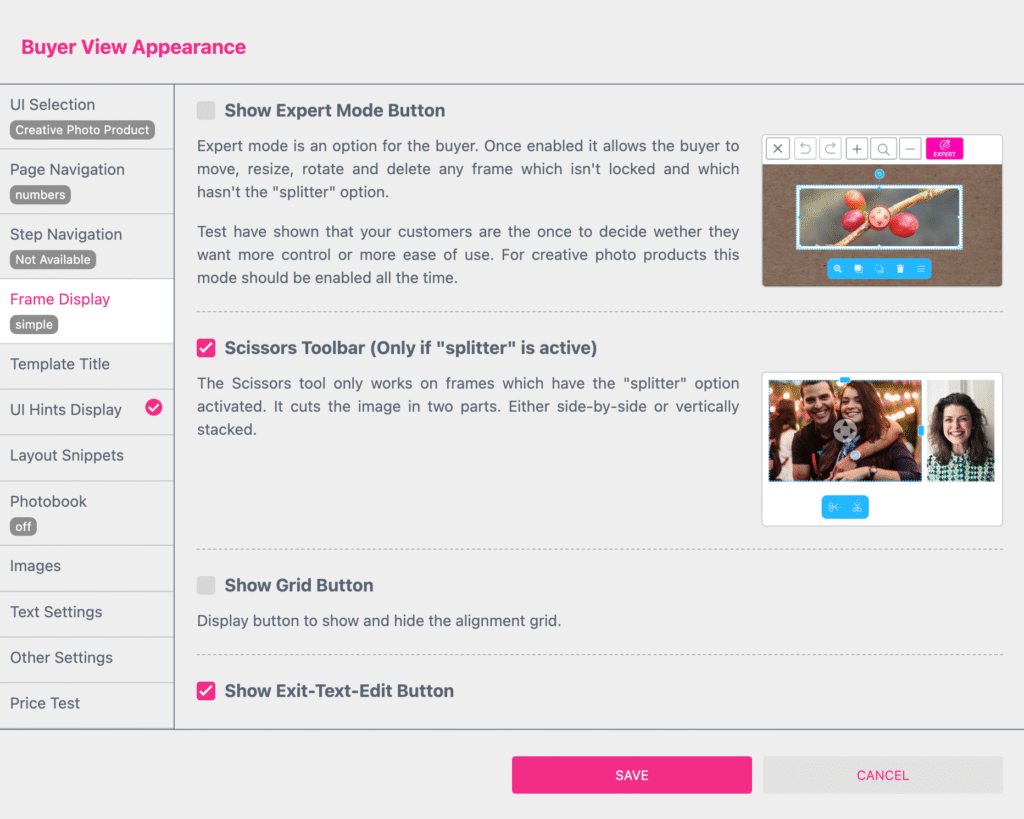
From the Template settings (see image below), you can determine whether the splitter functionality for 'cutting' photos is visible to the visitor. If this function is visible, the visitor can divide the photo into multiple objects. If this function is not visible, the visitor can only adjust the proportions between the existing objects.
The Splitter feature is a powerful feature that can be used in a wide variety of ways. In principle, it can be used within templates for all kinds of items, from greeting cards to T-shirts and from photo books to posters.